 Screo
ScreoHow to Keep a Screenshot Floating on Top of Other Windows on Mac
macOS has no built-in way to keep an image always on top. Here's why pinned screenshots are so useful and how to pin one above every window on your Mac.
You're filling in a form and need the numbers from another app. You're building a screen and want the design mockup next to your code. You're following a set of instructions that live in a window you keep losing behind everything else.
In all of these, you want one thing: a picture of something, floating on top, while you work in the window underneath. On a Mac, that's harder than it should be.
Can macOS keep a window always on top?
Not for regular windows. macOS has no "always on top" setting for apps like Preview, so an image you open there disappears the moment you click into another app. Picture in Picture floats above everything, but only for video.
The built-in workarounds are all compromises:
- Split View. Put Preview and your other app side by side. It works, but both apps go full screen and each gets half the space.
- Stage Manager or a second display. Better if you have the room, but the image is still a normal window that can end up behind others.
- Resizing windows carefully. Fine once, annoying the twentieth time.
Why a pinned screenshot works better
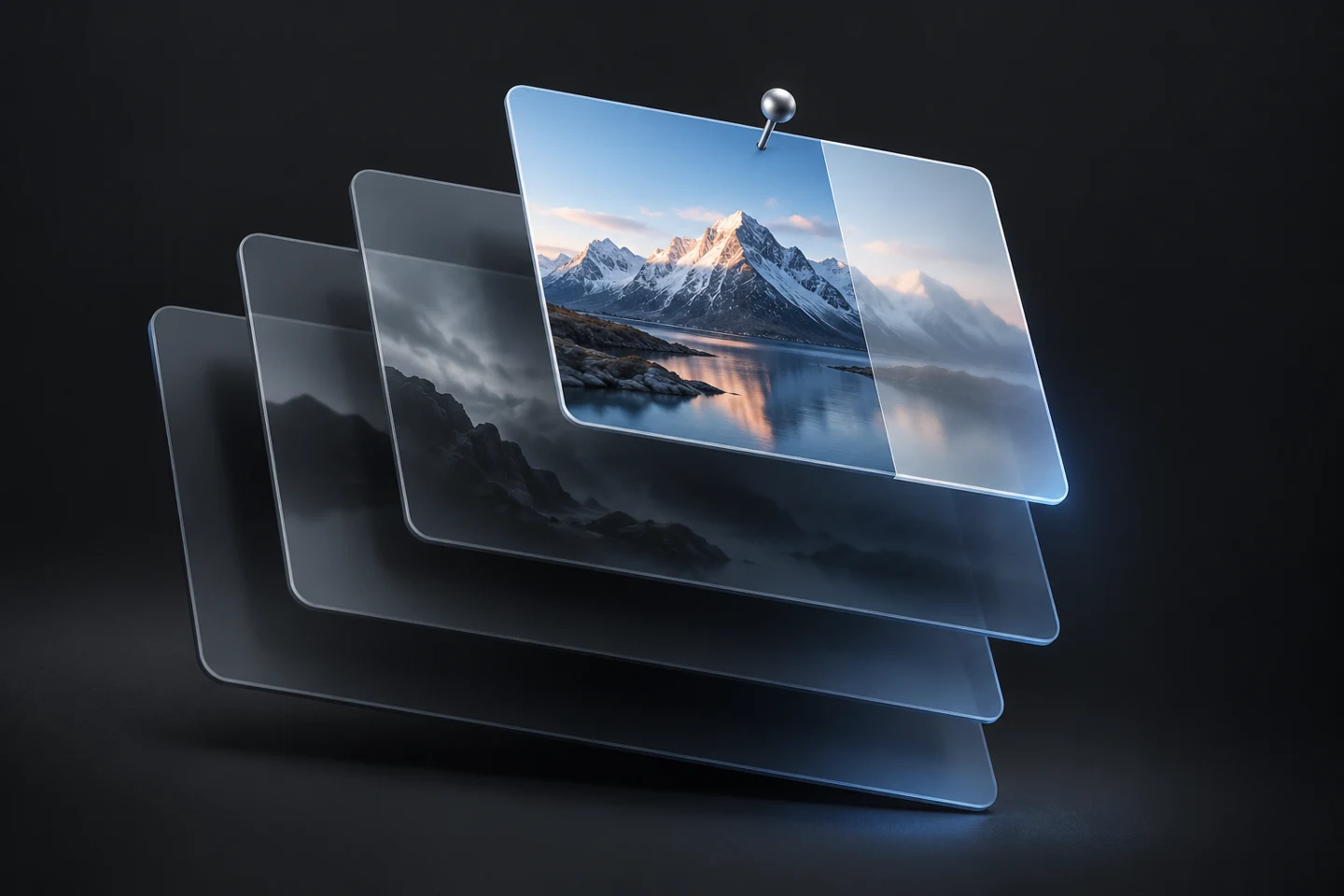
A pinned screenshot is a small, borderless window that stays above every other window, including when you switch apps. It behaves like a sticky note made from part of your screen.
Common uses:
- Copying values between apps — an invoice, a set of credentials for a test account, a table of numbers.
- Comparing design and implementation — pin the mockup over your build and lower the opacity to spot differences.
- Following instructions — pin the steps while you click through them.
- Keeping a reference visible during a call or while writing.
How to pin a screenshot in Screo
In Screo, pinning is one click:
- Capture the area you want to keep in view.
- In the quick-access tray, click Pin.
- The capture becomes a floating window above everything else. Drag it anywhere, and resize it from the edges.
A few things make pins more useful:
- Opacity. Lower it to see what's underneath, which is perfect for overlaying a mockup on a real screen.
- Click-through. Turn it on and clicks pass straight through the pin to the window below, so it never gets in the way.
- Hide or show all pins with one shortcut (Command-Shift-P by default) when you need a clear screen for a moment.
- Pin from History. Screo keeps a local history of your captures, so you can pin something you took earlier without capturing it again.
You can also annotate a capture first — circle the number you need, for example — and then pin it.
Other apps that can pin
Pinning isn't unique to Screo. CleanShot X and Shottr can both pin screenshots too. If you already use one of them, check its menu for a pin option. For a wider comparison, see the best screenshot apps for Mac.
Tips for working with pinned screenshots
- Crop tightly. A small pin with just the numbers you need is easier to work around than a full-window capture.
- Use click-through for overlays. When comparing a mockup with a build, lower the opacity, enable click-through, and keep working in the app underneath.
- Close pins when you're done. It sounds obvious, but a pin that holds a password or customer data shouldn't stay on screen during a screen share.
Once you get used to pinning, you'll notice how often you used to switch back and forth between windows just to read one line.
Screo is a native screenshot and screen recording app for Mac — nothing you capture ever leaves your Mac.