 Screo
ScreoHow to Blur Sensitive Info in a Screenshot on Mac (So It Stays Hidden)
Not every blur actually hides text. Here's how to redact emails, keys and personal details in a Mac screenshot properly, with built-in tools or a dedicated app.
You take a screenshot for a bug report or a support reply, and right in the middle of it is an email address, an API key, a customer's name or an order number. You need to hide it before you hit send.
The good news: it takes a few seconds. The catch: some of the ways people usually do it don't actually hide anything.
The mistakes that leave text readable
A highlighter or semi-transparent shape. A yellow highlighter stroke or a 50% opaque rectangle makes text look covered, but it's still there underneath. Anyone can read it by zooming in, and adjusting the brightness makes it obvious.
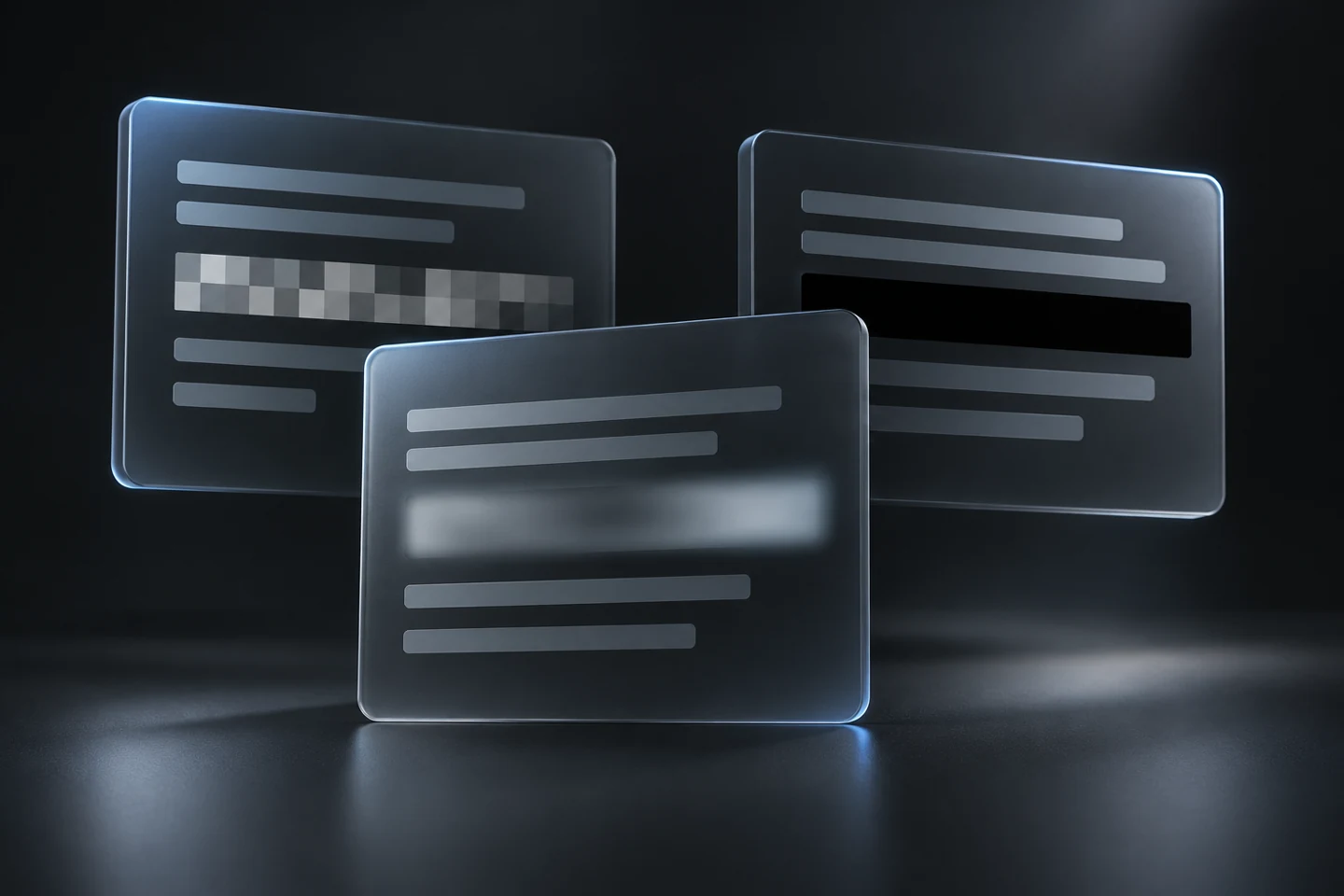
A light blur. A gentle blur over large text often leaves the words readable, especially for short, predictable things like email addresses or numbers.
Pixelating very short text. Pixelation looks thorough, but for short strings in a known font it isn't always enough. Researchers have published tools that can partly reconstruct pixelated text in some cases. For a password or a key, don't rely on it.
Covering only one copy. The same email often appears twice: once in the message and again in a tab title, a sidebar or a notification banner. Redact one and the other gives it away.
What actually hides information
In order of safety:
- Crop it out. If the sensitive part isn't needed, the safest redaction is not including it at all.
- A solid, fully opaque box. A black (or any solid color) rectangle replaces the pixels completely. This is the right choice for passwords, keys, tokens, card numbers and anything you'd be upset to see leaked.
- A strong blur or pixelation. Fine for faces, background windows and longer blocks of text where you just want to reduce distraction. Use it at full strength, not a subtle setting.
And always flatten the image before sharing. A PNG or JPEG screenshot is flat by nature, but if you send an editable file from some apps, the original layer may still be inside it.
How to redact a screenshot with built-in tools
macOS doesn't have a blur tool in Markup, but you can draw an opaque box:
- Take the screenshot (Shift-Command-4 for an area).
- Click the floating thumbnail in the corner of the screen to open Markup. If it's already saved, open the image in Preview and click the Markup button.
- Choose the Shapes tool and pick a rectangle.
- Drag it over the sensitive part.
- Open the Fill Color menu and choose a solid color, such as black. Set the border to the same color.
- Click Done (or save in Preview).
That's enough for a one-off. It gets tedious if you do it several times a day, and there's no blur or pixelate option for when you just want to soften the background.
How to redact a screenshot in Screo
Screo's annotation editor has three redaction tools: Blur, Pixelate and Blackout. All three are applied to the actual pixels when you export, copy or save. Screo doesn't use a layered file format, so there's nothing underneath to recover later.
The usual flow:
- Capture an area or a window with a shortcut.
- Click Annotate in the quick-access tray.
- Pick Blackout for passwords, keys and numbers, or Blur/Pixelate for faces and background content.
- Drag over the area, then copy or save.
Because redaction lives in the same editor as arrows, text and numbered steps, hiding a few details and annotating the rest of the screenshot is one pass, not two apps.
A quick checklist before you share
Before a screenshot leaves your Mac, take five seconds to scan it for:
- Email addresses and names, including in tab titles and sidebars
- API keys, tokens and anything in a URL after
?token=or similar - Order numbers, invoice numbers and account IDs
- Other people's messages and notifications that slid in at the wrong moment
- Bookmarks, open tabs and the menu bar, which can reveal more than you'd think
Zoom in to 100% or more and look at the edges of each redacted area. If you can still make out a letter, make the box bigger.
The short version
Use a solid box or crop for anything that really matters, blur for everything else, and check the whole image rather than just the obvious spot. If you redact screenshots regularly, a tool that does real pixel-level redaction in the same place you annotate will save you time — and a few awkward "please ignore that" messages.
Screo is a native screenshot and screen recording app for Mac — nothing you capture ever leaves your Mac.